For teams
How to take consistent employee headshots
Consistent team photos begin with consistent source pictures. Give everyone the same short capture brief, agree a sample photo, then use one saved background and framing preset. Review each person's result before exporting; matching a backdrop cannot fix very different lighting or a missing part of the head.
The photo brief, in pictures
One team look, in three steps
A simple starting point for companies, sports teams, clubs and associations.
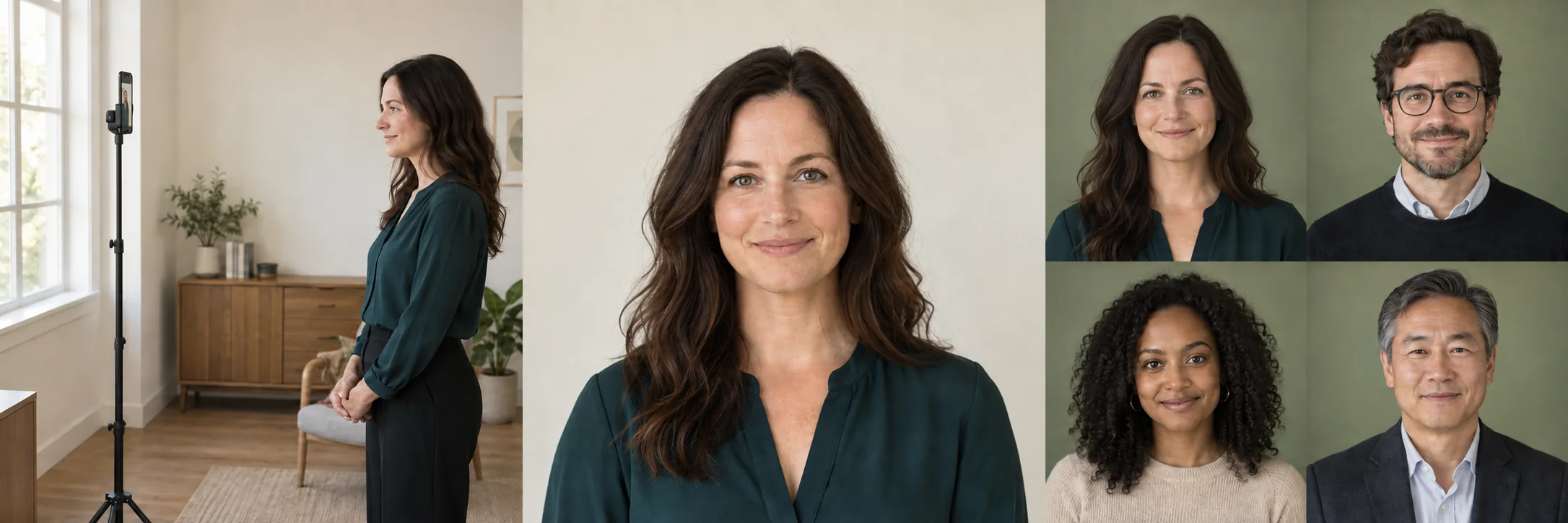
Find soft light
Face a window with the phone at eye level. Use a stand and timer, or ask someone to take the photo.
Leave room to frame
Keep your whole head, both shoulders and upper chest in view. Leave space around your hair and send the original photo without filters.
Bring the team together
Apply one saved background and framing preset. Review each person's portrait before exporting the batch.
AI-generated illustrations of the setup and intended style. Your original lighting, clothing and expression stay in the finished portrait.
1. Agree one example before collecting a batch
Choose the destination first: staff directory, company website, speaker biographies or profile avatars. Decide the format, background, approximate head size and how much of the shoulders should show. Use a willing colleague's approved sample to explain the intended result.
Test a few sources before asking the whole company for photos. Include different hair, glasses and clothing so you can see whether the setup and background suit the group. A background that works for one person may need adjustment before it becomes the company standard.
2. Send employees this capture brief
Share this page with employees or copy the checklist below into your own collection instructions. Keep the guidance short enough to follow beside a phone.
- Face soft window light; avoid a bright window behind you.
- Place the phone at eye level. Use a friend or a supported phone with a timer.
- Start about 1.5–2 metres away and adjust to include the full head, both shoulders and upper chest.
- Leave space around hair or headwear; do not crop the original tightly.
- Wear the agreed style and use a comfortable, natural expression.
- Send one sharp original file through the company's approved private channel, without filters.
3. Collect and check sources privately
Explain where the photos will appear, who will review them and how employees can request a replacement. Use an agreed employee reference to keep files identifiable without adding unnecessary personal details to filenames. Collect individual photos with the appropriate permission through a private channel.
Review the source before spending time on a large batch: check focus, visible crown and chin, lighting and framing. Ask for a replacement when those are missing. For the browser batch workflow, prepare individual JPEG, PNG or WebP files; each batch can contain up to 100 photos.
4. Apply one preset, then review each person
Save the chosen background, output format and proportional framing as a company preset. Select that preset version for the batch. PortraitDock uses the same output rules while retaining each person's photographed face, clothing and pose.
Check the visible hair or headwear crown, chin and face centre guides on each result. Correct guides when necessary and inspect the hair edges and shoulder crop. Different shoulder widths cannot all have identical side padding and identical head size without distortion; use the common framing standard and review exceptions.
Approve the usable portraits before exporting. Keep the same approved preset version and capture brief for new hires. If you deliberately change the standard, test a new version before applying it across another batch.
Before you upload
- A shared sample and capture brief are agreed
- Each employee knows the intended use
- Original files have clear internal references
- One preset version is selected for the batch
- Each person's crop and edges are reviewed before approval
Common questions
Can employees take their photos in different locations?
Yes, but ask them to follow the same lighting and camera setup. A shared background and framing preset can align the composition; it does not make different source lighting, posture or clothing identical.
Can we upload a group photograph?
Use a separate source photo with one person for each employee. The current workflow is designed for individual portraits, not extracting several employees from one group photograph.
Does every 100-photo batch fit in one ZIP?
The export supports 100 approved portraits with JPEG and PNG outputs plus a manifest, subject to a 256 MiB aggregate input limit. Large lossless batches can exceed that limit; individual downloads remain available.